Goobies 2 Steam Deck & Handheld Notes
Official platform is Windows Steam — treat Deck play as community Proton territory, not a studio guarantee.
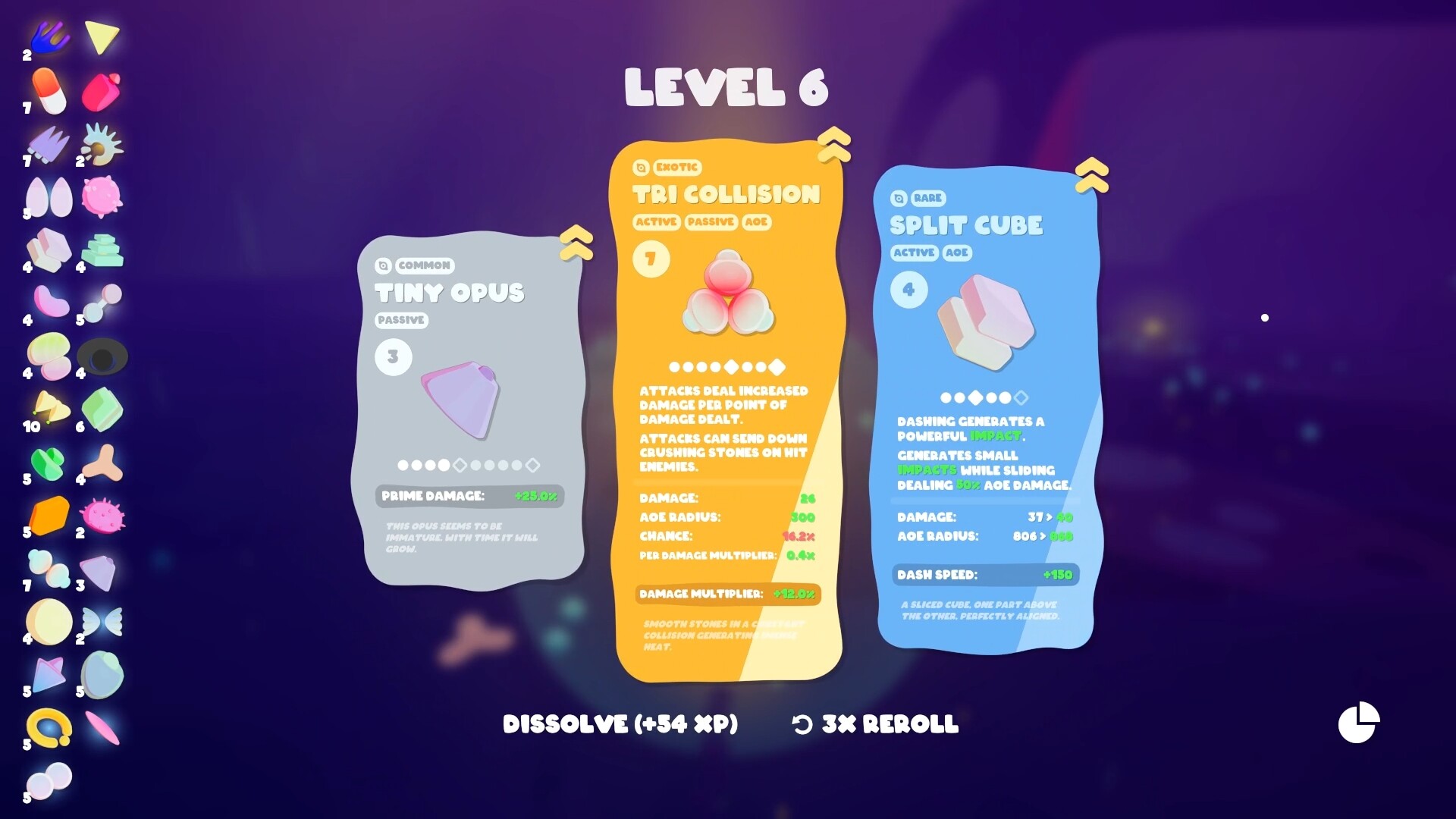
Goobies 2 is sold and supported as a Windows Steam release from Höganäs Spel. That matters before anyone promises “perfect Deck play.” This page gives honest handheld guidance: what is officially true, what community Proton reports can tell you, which settings to verify first, and which wiki pages to read instead of invented compatibility grades.
We do not invent verified Steam Deck ratings, ProtonDB medals, or studio-certified FPS numbers. Check live community reports yourself, then validate on your device.
Related pages: System Requirements, Settings, Controls, Demo vs Full Game, Official Links, and the Tools Hub.
Official platform facts
- Store platform: Steam for Microsoft Windows
- Full game app ID:
3565090 - Demo app ID:
4536190 - Input: Steam lists full controller support (Xbox and PlayStation families included in accessibility/feature tags)
- Co-op: Online, up to three players, no split-screen
- Language: English official on Steam
If a handheld storefront badge, OS feature, or verification mark is not on the live Steam page, do not assume it exists because a creator said so.
Steam Deck via Proton — set expectations
Many Windows-only Steam games can launch on Steam Deck through Proton compatibility layers. Community success varies by:
- Proton version experimental vs stable
- Shader compilation stutters on first boot
- Multiplayer anti-cheat or networking edge cases (when present)
- Thermal limits during dense mutation/omen particle storms
- Cloud save quirks between Deck and desktop
For Goobies 2, treat Deck reports as anecdotal snapshots. Before a co-op night:
- Search recent ProtonDB-style / Steam Deck community notes for app
3565090. - Prefer reports dated after the latest hotfix on Patch Notes.
- Test solo for thirty minutes before inviting two friends.
- Have a Windows fallback PC ready if you are the lobby host.
This wiki will not stamp “Verified” or “Playable” because those labels belong to Valve/community databases and can change overnight.
Controller support on Windows (the reliable baseline)
On official Windows Steam builds, full controller support is a first-class feature. That is good news for Deck users if Proton launches cleanly, because the game already expects pad play:
- Aim with the right stick; keep sensitivity lower than desktop mouse habits.
- Bind ping accessibly for Sentient mutation fire control (Controls).
- Test jump/slam on Bingus Bongus before a boss attempt.
- Disable painful rumble if it hides audio telegraphs.
Desktop controller success does not automatically equal Deck success, but it means you are not fighting a keyboard-only design.
Settings tips that matter on handhelds
October and launch-adjacent notes called out practical client options players should know. On Deck-class hardware, prioritize clarity over Ultra cosmetics:
Camera Comfort
Steam lists Camera Comfort accessibility. On a small screen held close to your face, reducing shake/bob is often more valuable than max shadows. Configure via Settings.
Resolution and performance scale
Start from a stable internal resolution instead of native panel pride. Third-person blob fights spike when omens evolve and artifacts rewrite particle rules. If frame pacing stutters during packs, lower resolution scale before disabling the only readability option you care about.
Forced / staged shader compile
Notes around the October window discussed shader compile behavior. On handhelds, first-run shader hitches can look like “the game is broken.” Let compilation finish in a quiet area, then retest combat. Do not begin an Impossible attempt during first-boot stutter.
Fullscreen discipline
Prefer a clean fullscreen or confirmed exclusive mode when available so the compositor is not adding latency. If you alt-tab constantly for guides, expect hitching — download offline notes first.
Thermals and TDP
Community Deck players often cap TDP for quieter long sessions. Mutation-heavy late runs may need a higher power limit; decide based on your device’s heat, not a copied YouTube preset.
Co-op on handhelds
Online three-player lobbies are sensitive to host quality. Recommendations:
- Host from the strongest stable machine when possible.
- If the Deck is a client only, test join/leave and revive flow before ancient Haibel nights (Difficulties, Bosses).
- Use voice on a separate bud if UI chat is painful on the small screen.
- Agree on omen/artifact greed rules so particle storms stay readable (Omens, Artifacts).
Demo-first workflow for Deck owners
Install the free demo (4536190) through Desktop Mode or Gaming Mode according to your current Steam client habits, then:
- Confirm launch under your chosen Proton version.
- Complete one Wiggle Woole and one Bingus run.
- Check Cloud sync if you also own a Windows PC.
- Only then buy/install full
3565090and re-test after shader warm-up.
Details on demo versus full content live on Demo vs Full Game.
What this page will not claim
- A specific ProtonDB tier or Steam Deck Verified status
- Guaranteed 40/60 FPS targets on any TDP
- That every multiplayer edge case is solved on Linux
- That soundtrack DLC (
3891870) or every overlay tool works identically on Deck
When community consensus stabilizes after patches, update your personal notes — and trust live reports over any frozen wiki sentence.
Practical checklist before a handheld session
- Read System Requirements so expectations match Windows baselines.
- Apply Camera Comfort and volume habits from Settings.
- Verify binds with Controls.
- Warm shaders; avoid first-boot boss attempts.
- Skim Patch Notes for performance-related fixes.
- Keep Official Links handy for Steam support and studio news.
Related reading
Play Goobies 2 on Deck if your own launches are stable — but remember the studio’s official home is Windows Steam, and compatibility is a community journey you must verify per patch.
Frequently Asked Questions
Quick answers about Goobies 2 builds, co-op, and setup.
Is Goobies 2 officially a Steam Deck game?
The official platform is Windows Steam. Deck play depends on community Proton reports, which vary and are not graded as facts on this wiki.
Does the game support controllers?
Yes. Full controller support is listed for the Windows Steam release, which helps if Proton launches cleanly on a handheld.
What settings should Deck players check first?
Camera Comfort, a stable resolution scale, and patience for shader compilation before serious runs.
Will this page list a ProtonDB medal?
No. Ratings change quickly—check current community databases yourself and test solo before co-op.
Should I try the demo on Deck first?
Yes. App 4536190 is the safest launch and thermals smoke test before installing the full game.